Page file for mining: how much to set and how to configure it in Windows
Miner crashes with "out of memory" while RAM is free? How much page file your GPUs need, setup in Windows 10 and 11, a sizing formula and a PowerShell check.
A page file that's too small is the most common reason a miner crashes with no explanation or reports "out of memory" while the system has plenty of RAM to spare. This article explains why a GPU needs memory on disk at all, how many gigabytes to set for your particular cards, and how to configure the page file in Windows 10 and 11 step by step. At the end: a verification command and a breakdown of typical mistakes.
Why a miner needs a page file if it runs on the GPU
This is the key question, and its answer explains everything else.
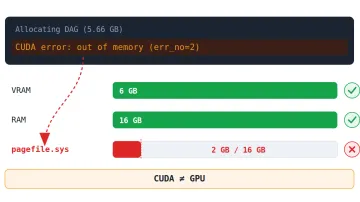
Windows will not hand programs more memory than it can physically back. Every memory allocation counts against the "commit limit," and that limit equals your RAM plus your page file. If a program asks for memory beyond the limit, Windows refuses — even if RAM is actually free.
Now the GPUs. On Windows, video memory is managed by the WDDM driver model, which virtualizes each card's memory: for every card, the driver reserves an amount of system memory comparable to that card's VRAM. It's a "just in case" reservation — those bytes are barely touched and are not written to disk. But they count in full against the commit limit.
Add it up: say you have four 12 GB cards — that's roughly 48 GB of reserved memory for drivers alone. With 16 GB of RAM and the page file disabled or small, the limit is exhausted before the miner even asks for its own memory. The result is an "out of memory" crash with RAM sitting empty.
Two practical conclusions follow:
- You need a page file even with lots of RAM. 32 or 64 GB won't save you if you run many cards.
- The page file puts almost no load on the disk. Reserved memory only has to be "backed by something" — there's no real read/write traffic. So the fear of "wearing out the SSD with a page file" is unfounded for mining.
How to tell the page file is the problem
Symptoms that point to a commit shortage:
- The miner closes immediately or a few seconds after launch with no clear error. Especially if it works with one card but crashes once you connect all of them.
- Lines in the miner log like
CUDA error: out of memory,cudaErrorMemoryAllocation,unable to allocate,insufficient system memory. - Windows pops up "Your computer is low on memory."
- Event Viewer shows a
RADAR_PRE_LEAK_64entry naming the miner. - The miner runs but freezes or crashes after tens of minutes — this happens when Windows tries to grow the page file automatically and doesn't make it in time.
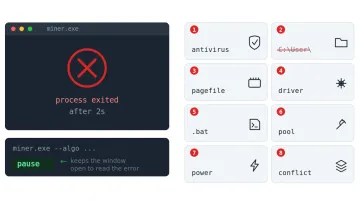
If you're seeing the CUDA error specifically, we have a separate breakdown of all its causes: CUDA error: out of memory while mining. If the miner just closes and you don't know why, start with the checklist Miner won't start: 8 causes and fixes and come back here when you reach the memory item.
How much to set: formula and table
Different miners and pools quote different numbers, but they all reduce to one rule:
Page file = total VRAM of all cards + 8 GB headroom. And never less than 16 GB, even for a single card.
The headroom is for Windows itself and the miner. If you have disk space, don't skimp — round up: extra page-file gigabytes cost nothing, while a shortage costs crashes.
Ready values for typical builds (in megabytes, because that's what the Windows dialog takes):
| Build | Total VRAM | Recommended page file |
|---|---|---|
| 1 × RTX 3060 (12 GB) | 12 GB | 20,480 MB (20 GB) |
| 1 × RTX 4090 (24 GB) | 24 GB | 32,768 MB (32 GB) |
| 4 × RTX 3070 (8 GB) | 32 GB | 40,960 MB (40 GB) |
| 6 × RTX 3080 (10 GB) | 60 GB | 69,632 MB (68 GB) |
| 8 × RTX 3060 Ti (8 GB) | 64 GB | 73,728 MB (72 GB) |
| 6 × RX 6600 (8 GB) | 48 GB | 57,344 MB (56 GB) |
To convert gigabytes to megabytes, multiply by 1024: 20 GB = 20,480 MB.
💡 You won't break anything by setting more than needed. If you're torn between two values, take the larger one.
⚠️ Important. RAM size does not enter the formula. The rule "with 32 GB of RAM you don't need a page file" holds for gaming and office work, but not for mining — for the reasons in the first section.
Which drive to put it on
Three rules:
- On an SSD, if you have one. A page file works on an HDD, but the system slows noticeably when memory gets tight. Mining puts minimal load on an SSD and doesn't eat its lifespan.
- On a drive with enough free space. The page file occupies exactly the size you set. On rigs with a 60–120 GB system SSD, make sure at least 10–15 GB remain free after creating it.
- On any drive, not necessarily C:. If the system drive is small and there's a second one, put the page file there. Windows allows it.
Step 1. Open the virtual memory settings
The path is the same in Windows 10 and Windows 11, and the fastest way to get there is the Run dialog:
- Press Win + R.
- Type
SystemPropertiesPerformance.exeand press Enter. The "Performance Options" window opens. - Go to the Advanced tab.
- Under "Virtual memory," click Change….
If you prefer the mouse: right-click "This PC" → Properties → Advanced system settings → Advanced tab → Performance: Settings → Advanced tab → Change…. Same destination.
Step 2. Set a fixed size
In the "Virtual Memory" window:
- Untick "Automatically manage paging file size for all drives" at the top. Everything else stays greyed out until you do.
- In the drive list, select the drive where the page file will live (usually C:).
- Select "Custom size".
- In "Initial size (MB)" and "Maximum size (MB)" enter the same number from the table above. For example, for four 8 GB cards —
40960in both fields. - Click "Set" — without it, the values are not saved.
- Click "OK" in every open window.
- Restart the computer. The new size doesn't apply until you do.
Why initial and maximum must match. If they differ, Windows creates a file at the minimum size and expands it on demand. Expansion isn't instant, and the miner often crashes before it finishes. A growing file also fragments. Equal values solve both problems: the file is created at full size right away and never changes.
⚠️ Important. Don't select "No paging file" for any drive if it's the only page file in the system. Even with 64 GB of RAM, a multi-GPU miner will hit the commit limit.
Step 3. Verify the setting took effect
After restarting, open PowerShell (Win + X → "Terminal" or "Windows PowerShell") and run:
Get-CimInstance Win32_PageFileUsage | Select-Object Name, AllocatedBaseSize, CurrentUsage
The AllocatedBaseSize column should show the size in megabytes you set. CurrentUsage shows how much is actually in use right now — while mining, this number usually stays small, and that's normal: as covered above, the memory is reserved, not used.
If AllocatedBaseSize shows the old value, you either didn't click "Set" or didn't restart.
Now launch the miner with all cards. If it starts and holds for 10–15 minutes, the page file was the problem.
Typical configuration mistakes
Set the size but didn't click "Set." The most common one. "OK" without "Set" saves nothing. Verify with the command from step 3.
Didn't restart. Windows applies the new size only after a restart.
Entered the size in gigabytes. The fields take megabytes. 40 instead of 40960 yields a 40 MB file — worse than before.
Not enough disk space. Windows creates a smaller file or none at all, and the warning is easy to miss. Free up space or move the file to another drive.
Left automatic mode because "it seems to work." It will — until you add another card or update the driver. A fixed size eliminates floating problems.
Added a card and forgot the page file. Every new card adds its VRAM to the formula. Recalculate and increase.
Do you need this on HiveOS or Linux
Not in the familiar form, no. Linux works differently: drivers there don't reserve system memory for the full VRAM of every card, and HiveOS runs out of the box without a page file even on 8–12 GPU rigs with 4 GB of RAM. This article is Windows-only.
Frequently asked questions (FAQ)
I have 32 GB of RAM. Do I really need a page file? Yes, if you run more than one or two cards. The driver reserves an amount comparable to each card's VRAM against the commit limit, and 32 GB runs out on paper fast even though it's physically free. Size it by the table's formula.
Doesn't the page file wear out the SSD? For mining, practically not. Reserved memory has to be backed by something, but almost no real read/write traffic hits the disk. Check for yourself: CurrentUsage from the step 3 command stays small while mining.
Can I set 100 GB just to be safe? You can, if you have the disk space. No harm — just occupied space. But there's little point: calculate by the formula and add headroom.
Why did the miner work yesterday and crash today? Common causes: the GPU driver updated and now reserves more, you added another card, or Windows in automatic mode shrank the page file after a restart. A fixed size removes the third cause; the first two are fixed by recalculating.
Does page file size affect hashrate? No. It only affects whether the miner starts. If the miner is running, enlarging the page file changes nothing.
Do I need a page file for mining Pearl (PRL)? Yes, as for any other GPU algorithm on Windows — the memory reservation mechanism doesn't depend on what you mine. The setup is the same. The coin guide itself is here: How to mine Pearl (PRL) on a GPU.
This material is for informational purposes only and is not financial advice. Table values are a guideline: recalculate the page file size whenever you add GPUs or change drivers.