CUDA error: out of memory when mining — what it means and how to fix it
"CUDA error: out of memory" in Gminer, T-Rex, lolMiner, SRBMiner: why it's usually the page file, checking VRAM in nvidia-smi and the DAG limit for 4 and 6 GB.
Your miner prints "CUDA error: out of memory" and stops. In most cases the graphics card is fine: the request for memory failed on the Windows side, usually because of the page file. This guide shows how the error looks in each popular miner, how to measure free VRAM before you change anything, and a strict checklist from the most common cause to the rarest — so you do not buy a new card for a problem that takes five minutes to fix.
📌 Status as of September 2026: DAG sizes below were checked at the time of writing and keep growing. Before deciding that a card is "too weak", look at the current DAG size on your pool's stats page or in the miner log.
How the error looks in different miners
The wording depends on the miner, but the meaning is the same: the miner asked for a block of memory and did not get it. Search for these lines in your console:
| Miner | Typical line in the log |
|---|---|
| Gminer | CUDA error: out of memory (err_no=2) |
| T-Rex | cuda exception: CUDA_ERROR_OUT_OF_MEMORY or Device does not have enough free memory to hold the DAG |
| lolMiner | Allocation of DAG failed with error: Memory object allocation failure or Error when allocating memory or building DAG |
| NBMiner | CUDA Error: out of memory (err_no=2) or Device N: out of memory |
| SRBMiner-Multi | CUDA error in CudaProgram.cu:388 : out of memory (2) |
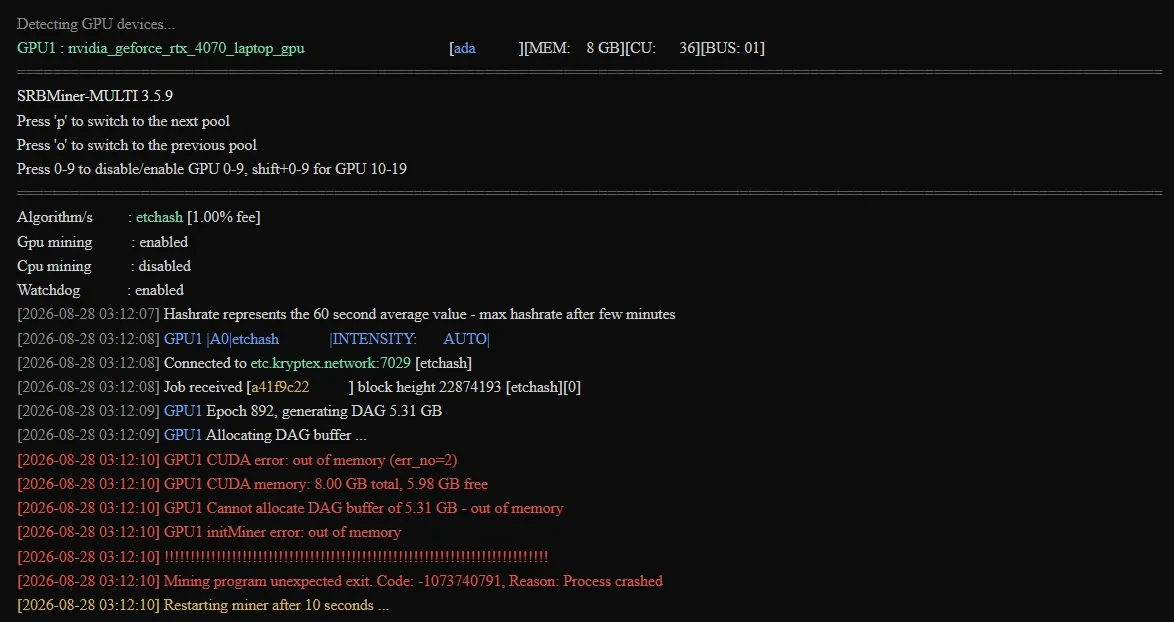
A line just above or below usually says how much memory the miner tried to allocate — for example Allocating DAG (5.66 GB). That number is the key to the whole diagnosis: compare it with the free VRAM you measure in the next section.
The error is specific to NVIDIA cards, because CUDA is an NVIDIA API. On AMD the equivalent failure is worded differently (clCreateBuffer failed, CL_MEM_OBJECT_ALLOCATION_FAILURE), but the causes are the same.
What it actually means
Literally: the miner requested a block of memory and the system could not provide it.
The key word is "system", not "graphics card". A mining process uses three kinds of memory:
- VRAM of the card — where the DAG lives;
- RAM — system memory;
- virtual memory (the page file) — Windows uses it to prepare and mirror GPU allocations.
A shortage of any of the three produces the same CUDA error. That is why the message is misleading: it says CUDA, but the card is often not the bottleneck.
⚠️ Important. Do not order a new card after seeing this error. Work through the checklist below first — most cases are closed by steps 1–4.
Measure before you change anything
Two commands give you the numbers you need.
Free VRAM. With the miner closed, run in PowerShell:
nvidia-smi --query-gpu=index,name,memory.used,memory.total --format=csv
You will see how much VRAM is already occupied before mining starts. On a 6 GB card with a monitor attached and a browser open it is common to see 800–1200 MB used — that alone can push a 5.6 GB DAG over the limit.
Current page file size. In the same PowerShell window:
Get-CimInstance Win32_PageFileUsage | Select-Object Name, AllocatedBaseSize, CurrentUsage
AllocatedBaseSize is in megabytes. If it is smaller than the total VRAM of all your cards, you have found the most likely cause.
Cause 1: page file too small
Start here. This is the cause in the majority of cases, and it costs nothing to fix.
By default Windows sizes virtual memory for ordinary desktop use. Mining needs a page file proportional to the combined VRAM of all cards, and the automatic setting cannot know that.
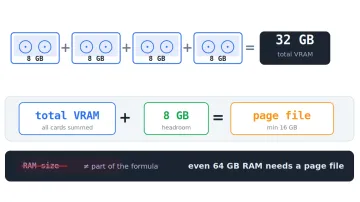
Formula: total VRAM of all cards + 4–8 GB of headroom.
| Rig | Recommended page file |
|---|---|
| 1 × 8 GB | 16 GB |
| 2 × 8 GB | 20–24 GB |
| 4 × 8 GB | 40 GB |
| 6 × 12 GB | 80 GB |
How to set it: Win+R → sysdm.cpl → Advanced → Performance "Settings" → Advanced → Virtual memory "Change". Untick "Automatically manage", choose "Custom size", enter the same value in both fields, click Set, then restart.
⚠️ Important. Two mistakes cost people hours: not clicking Set (the value is silently discarded) and not restarting (the change is not applied until reboot).
The full method, sizing for mixed cards and an SSD-wear note are in page file for mining — this section is deliberately short.
Cause 2: the DAG does not fit into VRAM
If the page file is correct and the error stays, check whether the card can handle the coin at all.
The DAG is a dataset the miner loads into VRAM. It grows with the chain: on KawPow (Ravencoin) it increases by about 8 MB every 7,500 blocks (roughly every 5 days), on Etchash (Ethereum Classic) by about 8 MB every 60,000 blocks. Once the DAG plus the system's own reserve exceeds the card's VRAM, the miner will not start on that coin.
Approximate DAG sizes as of September 2026 (verify before buying hardware):
| Coin / algorithm | DAG size | 4 GB cards | 6 GB cards | 8 GB+ cards |
|---|---|---|---|---|
| Ravencoin (KawPow) | ~5.66 GB | no | at the limit on Windows, still OK on Linux | yes, years of headroom |
| Ethereum Classic (Etchash) | ~4.28 GB | no | yes | yes |
| Ergo (Autolykos2) | noticeably smaller than KawPow | usually yes | yes | yes |
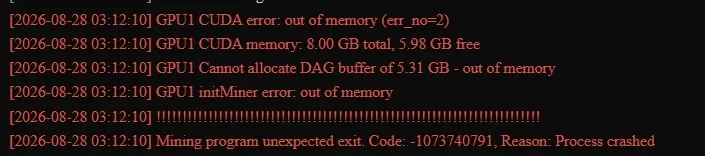
Why "at the limit on Windows" for 6 GB cards: Windows and the driver keep roughly 300–600 MB of VRAM for themselves, so a 6 GB card typically offers 5.4–5.7 GB to the miner. With a 5.66 GB DAG the card starts only if the monitor is not attached and nothing else uses the GPU — see the next cause.
What to do: on a 4 GB card switch to a coin with a smaller dataset or a non-DAG algorithm. On a 6 GB card free every megabyte of VRAM (below) and prefer Linux or a headless setup.
Cause 3: the system reserves part of the VRAM
The full nominal VRAM is never available to the miner. Windows takes a share for the desktop, the driver and the compositor. The nvidia-smi output above shows exactly how much.
How to free VRAM:
- Plug the monitor into the integrated graphics of the CPU instead of the mining card. On a 6 GB card this alone frees 300–500 MB.
- Close the browser. Chrome, Edge and Firefox with hardware acceleration hold hundreds of MB of VRAM.
- Disable hardware acceleration in the browser and in messengers (Discord, Telegram) if they must stay open.
- Turn off Windows visual effects and remove live wallpaper and widgets.
- On a rig run headless — no monitor, remote access only (RDP, AnyDesk or a miner web panel).
💡 lolMiner has
--keepfree— the amount of VRAM (in MB) it leaves untouched for the system. Lowering it, for example--keepfree 32, can let a borderline 6 GB card start. Other miners expose similar settings under different names; check the readme of your miner, and never guess flags.
Cause 4: other programs use the GPU
Anything that runs on the GPU takes memory away from the miner:
- a game or game launcher left in the background;
- video and 3D editors, streaming and screen-recording software;
- AI tools running on the GPU (image generators, local LLMs);
- a second copy of the miner you forgot about.
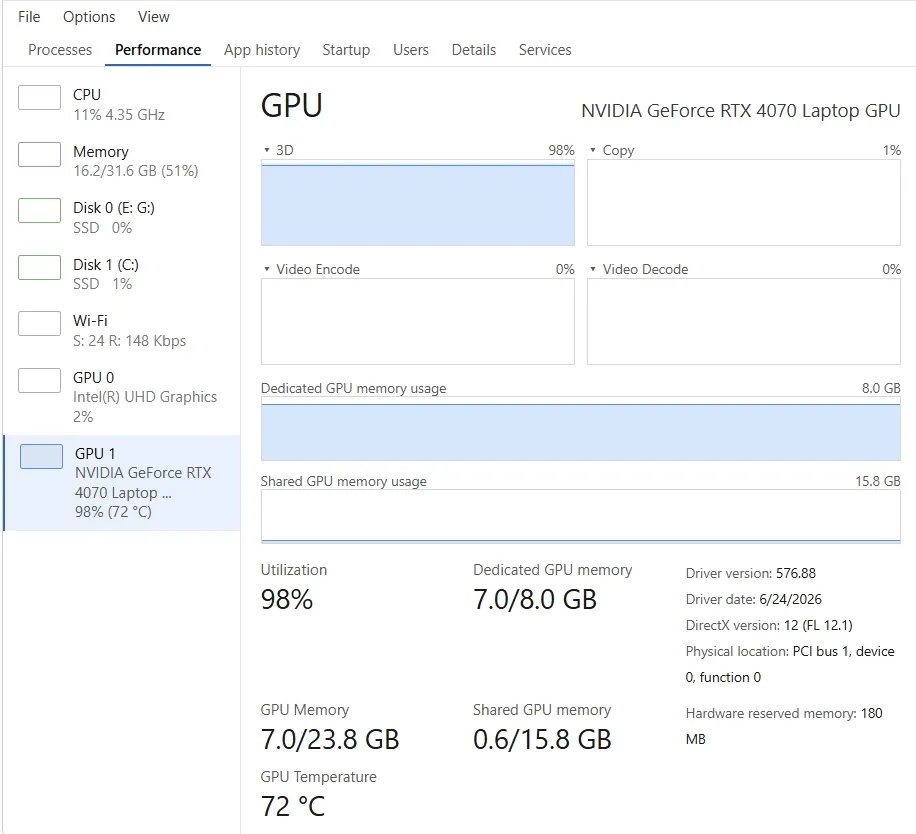
How to check: Task Manager (Ctrl+Shift+Esc) → Performance → GPU shows total VRAM use. Then Processes → sort by the GPU column to see who holds it. nvidia-smi without arguments lists processes as well.
Cause 5: too many cards in one system
On rigs the error often appears not on day one but after you add a card.
What to check:
- Page file recalculated? New card = new total VRAM = bigger page file.
- Enough RAM? 4 GB of RAM is too little for a multi-GPU rig; 8 GB is the practical minimum, 16 GB is comfortable.
- 64-bit Windows only. 32-bit cannot address enough memory.
Diagnosis: start the miner with a single card. If it runs, add cards one at a time, recalculating the page file each step. You will find either the faulty card or the threshold your system cannot pass.
Cause 6: outdated driver or miner
Driver. Old drivers may mismanage allocation for current DAG sizes. Install the latest driver from NVIDIA's official site. For a clean install, remove the old driver first with DDU in Safe Mode.
Miner. Old miner builds are not adapted to current DAG sizes and new algorithm versions. Download the latest release.
🛡️ Download miners only from the developer's official GitHub. In 2026 fake sites for Gminer, lolMiner and SRBMiner spread malware through poisoned search results, and "download miner" is exactly the query they target. Windows Defender may then flag the real miner too — how to add a safe exclusion: Windows Defender blocks miners. Safe setup for Gminer: Gminer setup and commands.
Cause 7: a stuck process from the previous run
The miner was closed improperly, the process is still alive and still holds VRAM. The next launch fails.
How to check: Task Manager → Details → find miner.exe, t-rex.exe, lolMiner.exe, nbminer.exe, SRBMiner-MULTI.exe → End task. If no process is visible but nvidia-smi still shows VRAM occupied, restart the PC — it fully resets the GPU memory state.
Diagnostic order: step by step
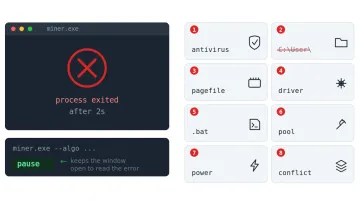
Go strictly in order, from common to rare:
- Restart the computer. Clears stuck processes and frees memory.
- Measure:
nvidia-smifor free VRAM,Get-CimInstance Win32_PageFileUsagefor the page file. - Fix the page file — total VRAM + 4–8 GB, click Set, restart. The most common cause.
- Close the browser and everything else on the GPU.
- Move the monitor to integrated graphics or run headless.
- Compare the DAG size from the log with the free VRAM from step 2.
- Update the driver.
- Update the miner from the official GitHub.
- Single-card test on rigs, then add cards one by one.
- Try a coin with a smaller dataset.
In the overwhelming majority of cases the problem is gone after steps 1–5.
If the card really is too weak
You went through the whole list and the error stays. Then the VRAM truly is insufficient for the chosen coin.
Options:
- Switch coins to a smaller dataset or to a non-DAG algorithm.
- Check for a BIOS mod for your card. Some mining-specific cards physically carry more memory than the firmware exposes. The procedure is risky — back up the BIOS first: NVFlash: flashing NVIDIA BIOS.
- Accept that the card is outdated for DAG algorithms. 4 GB cards are already out, 6 GB cards on Windows are next.
If the miner does not start at all and the error is different, the general checklist is here: miner won't start: 8 causes and fixes.
Frequently asked questions (FAQ)
Why do I get CUDA out of memory on an 8 GB card?
Almost always the page file. An 8 GB card has plenty of VRAM for any current DAG, so if the error appears, run the Get-CimInstance check above — the page file is probably at the Windows default.
The error appears only after a few hours of mining, not at start. Why?
The DAG epoch changed and the miner is regenerating a slightly larger dataset while the old one is still in memory, or another program grabbed VRAM in the meantime. Check nvidia-smi at the moment of the crash and add headroom to the page file.
Does the page file size matter if I have 32 GB of RAM?
Yes. The miner mirrors GPU allocations into virtual address space, and Windows counts that against the page file, not only physical RAM. Plenty of RAM with a small page file still fails.
Can I put the page file on an HDD instead of the SSD?
Yes, and it will not slow mining: the miner does not actively read or write it during hashing, it only needs the address space. The trade-off is a slower rig start.
Will a 6 GB card still mine Ravencoin at the end of 2026?
Only with the monitor off the card, nothing else on the GPU and ideally on Linux. At the current growth rate the DAG will exceed what a 6 GB card can offer on Windows within months. Check the current size before buying such a card.
Do I need to set the page file on Linux (HiveOS, mmpOS)?
No. Linux mining images handle GPU memory differently, and the page-file issue is Windows-specific. On Linux the same error means a real VRAM shortage or a driver problem.
This material is for informational purposes only and is not financial advice. Changing system settings and flashing a BIOS is done at your own risk.