Miner won't start or crashes immediately: 8 causes and fixes
Your miner closes, throws an error or shows zero hashrate? 8 causes with fixes: antivirus, path encoding, page file, drivers, .bat, pool, power and conflicts.
Your miner closes after a couple of seconds, throws an error, or shows zero hashrate? Let's go through all the common causes in order — from the simplest to the most complex, with a concrete fix for each.
Updated: 2026-08-31 · Reading time: ~8 minutes
#mining #errors #windows
Contents
- The first thing to do: see the error
- Cause 1: antivirus deleted the miner files
- Cause 2: non-Latin characters in the folder path
- Cause 3: page file too small
- Cause 4: outdated graphics drivers
- Cause 5: an error in the .bat file
- Cause 6: the pool is unreachable
- Cause 7: insufficient power or riser problems
- Cause 8: conflict with other programs
- Zero hashrate — a separate case
- Quick diagnostic checklist
- Conclusion
1. The first thing to do: see the error
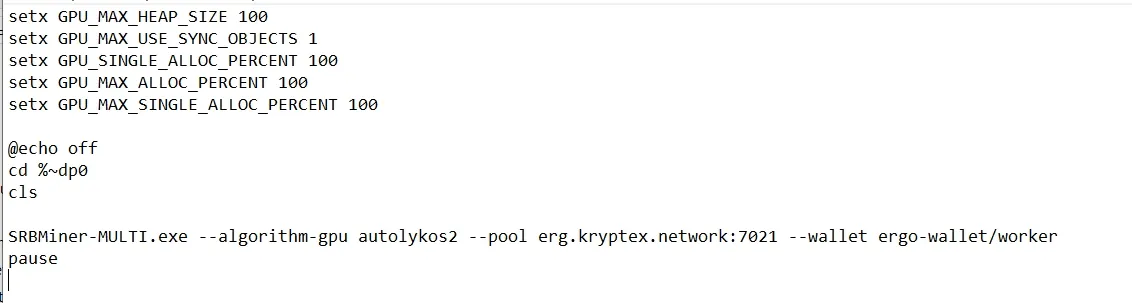
The main beginner problem: the miner window opens and closes instantly, before you can read anything. It's solved with a single line.
Open your .bat file and add this at the very end, on its own line:
pause
Now the window will stay open after a crash, and you'll see the error text. This is half the solution — knowing the exact error, you'll find the cause far faster.
You can also enable logging by adding the --log 1 parameter to the miner command — then all messages are saved to a file, and you can study them at your leisure.
2. Cause 1: antivirus deleted the miner files
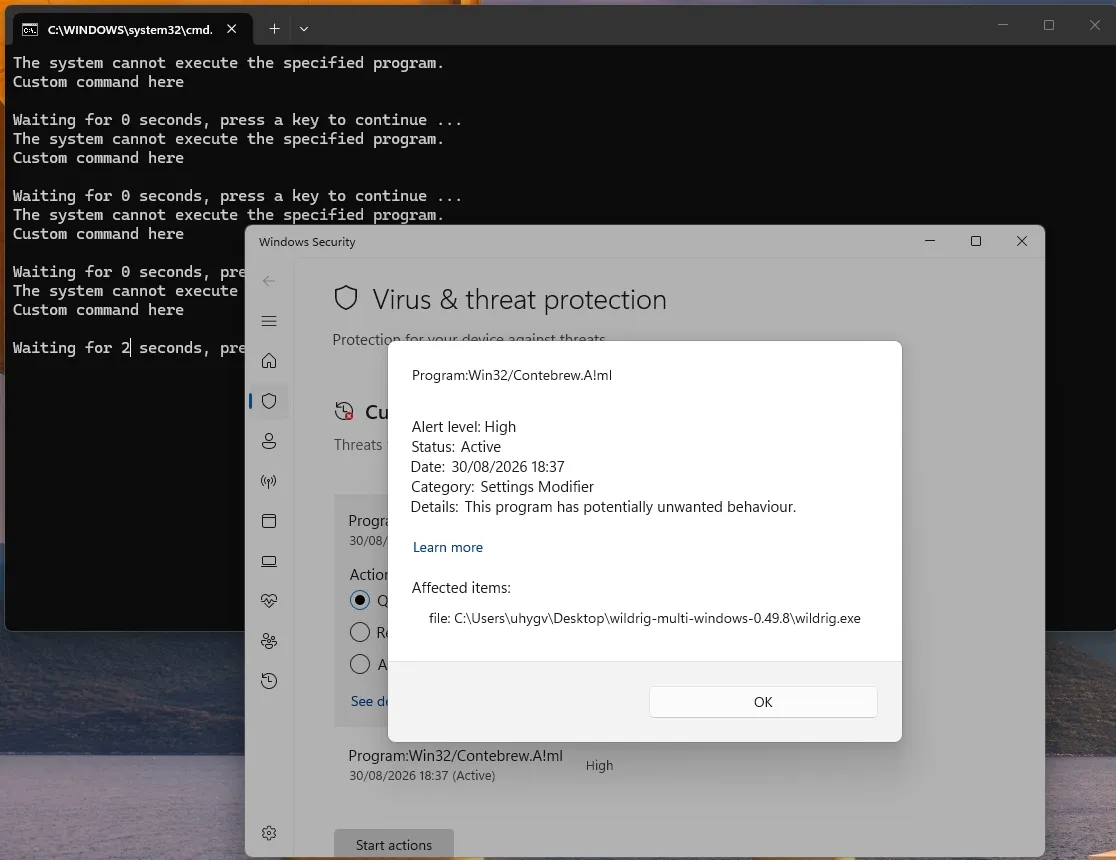
The most common cause on Windows. Windows Defender and antivirus programs treat miners as malware — this is a false positive characteristic of every miner without exception. The antivirus quietly deletes miner.exe or part of it, and there's nothing left to launch.
Signs: the file has vanished from the folder; the miner ran yesterday but not today; after extracting the archive there are fewer files than there should be.
How to fix it: add the miner's folder to the antivirus exclusions, then re-extract the archive (deleted files won't come back on their own).
🔗 Step-by-step guide — Windows Defender Blocks Miners: How to Add Folders to Exclusions.
⚠️ Important: add to exclusions only files downloaded from the developer's official GitHub. If the miner was downloaded from a questionable source, the antivirus warning may be real.
3. Cause 2: non-Latin characters in the folder path
Many miners can't handle non-Latin letters in file paths and crash without a clear error.
Bad: C:\Users\Иван\Miners\gminer Good: C:\miners\gminer
How to fix it: move the miner's folder to the root of the drive, in a path made up of Latin letters only. While you're at it, check the name of the .bat file itself — it should be in Latin characters too.
The same applies to the Windows username: if it's in a non-Latin script and the folder sits in Downloads or on the Desktop, the path still contains those characters. That's exactly why C:\miners\ is recommended.
4. Cause 3: page file too small
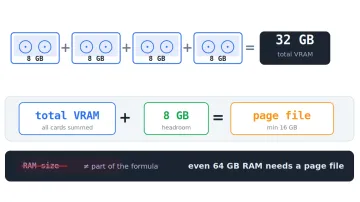
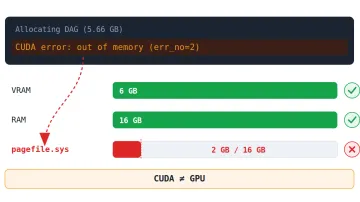
A classic problem, especially on rigs with several cards. The miner runs out of virtual memory and crashes a few seconds after starting.
Benchmark: the page file should be no smaller than the combined video memory of all your cards, with headroom. For a single card 16 GB is usually enough; for a rig of several, 20 GB or more.
If your miner crashes with a specific CUDA allocation failure, see our detailed guide on CUDA error: out of memory when mining.
How to increase it (Windows 10/11):
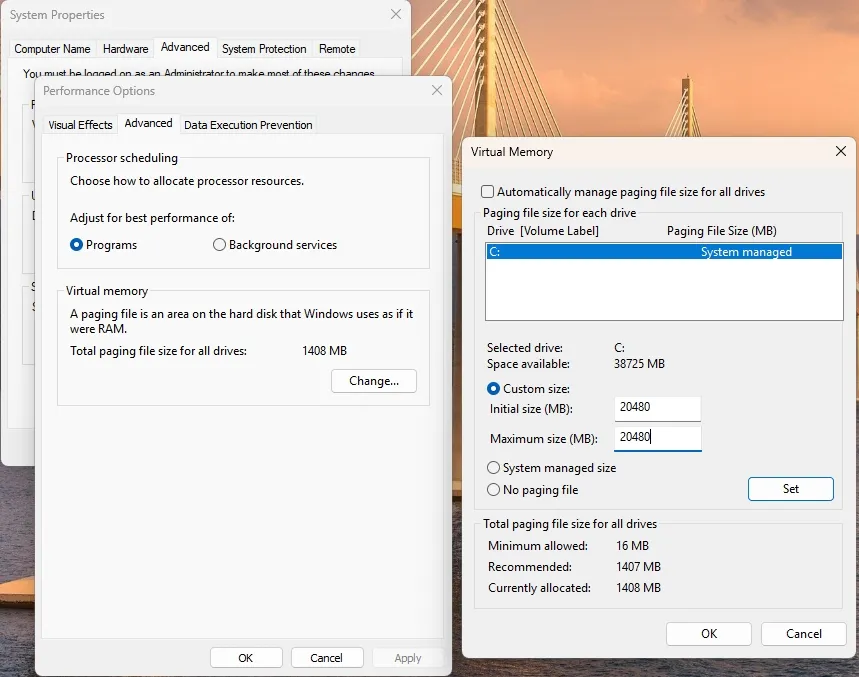
- Press Win+R, type
sysdm.cpl, Enter. - Advanced tab → "Performance" section → Settings button.
- Advanced tab → "Virtual memory" section → Change.
- Uncheck "Automatically manage paging file size for all drives."
- Select the drive, choose Custom size, and enter the initial and maximum size in megabytes (16 GB = 16384, 20 GB = 20480).
- Click Set, then OK, and restart the computer.
5. Cause 4: outdated graphics drivers
An old driver may not support the algorithm you need — the miner starts and immediately crashes, or doesn't see the card.
How to fix it:
- Download the latest current driver from the official NVIDIA or AMD site.
- For a clean install, it helps to first remove the old driver with the DDU utility in Safe Mode — this rules out conflicts from leftover old versions.
- Restart and try again.
The general rule: install a recent version from the official site and don't run a driver that's several years old. Old branches may not know about new algorithms and DAG sizes. You don't have to chase the very latest release on day one — many miners prefer a proven, stable version — but you shouldn't be years behind either.
6. Cause 5: an error in the .bat file
One typo and the miner won't start.
What to check:
- The executable's name. The command says
miner.exe, but the file in the folder is named differently? Make them match. - The wallet address. Copied in full, with no spaces or truncated characters. Check that the address is for the exact coin you're mining.
- Worker format. Usually
wallet.worker_name— separated by a dot, no spaces. - Algorithm. Spelled correctly and matching the coin (
kheavyhashfor Kaspa,kawpowfor Ravencoin,autolykos2for Ergo,etchashfor ETC). - File encoding. Save the .bat in ANSI or UTF-8 without BOM. Stray invisible characters break the launch.
- Extension. The file must be
start.bat, notstart.bat.txt. Turn on file extensions in Explorer (View → File name extensions) and check.
🔗 How to build a .bat file from scratch — Gminer: download, setup and commands.
7. Cause 6: the pool is unreachable
The miner launches but can't connect and closes.
How to check: open Command Prompt (Win+R → cmd) and run:
ping pool-address
No response means the problem is the pool's availability or your network.
What to do:
- verify the address and the port are correct — the port often depends on the algorithm and is listed on the pool's site;
- make sure the firewall or ISP isn't blocking the connection;
- try a different pool server (another region) or a different pool — that way you'll know whether it's the pool or your system.
8. Cause 7: insufficient power or riser problems
If the miner starts and crashes under load (after 10–60 seconds, once the cards reach full power), it's almost always the power.
Signs: the computer reboots on its own; shuts off when mining starts; one of the cards drops out of the list.
What to do:
- add up the cards' total draw and compare it with the PSU's rating — you need at least 20% headroom;
- check that all supplementary power cables are firmly connected, and that a single cable with splitters isn't feeding several power-hungry cards;
- check the risers: contact tightness, no scorching;
- try running mining with a single card — if it works, add cards one at a time to find the faulty one.
9. Cause 8: conflict with other programs
What interferes most often:
- a second running miner — close them all, leave one;
- overclocking programs with conflicting profiles (several utilities controlling clocks at once);
- recording/streaming software that uses the GPU;
- virtualization or Hyper-V — in some configurations it blocks access to the graphics card.
Check in Task Manager whether a miner process from a previous run is still hanging — it can block a new one.
10. Zero hashrate — a separate case
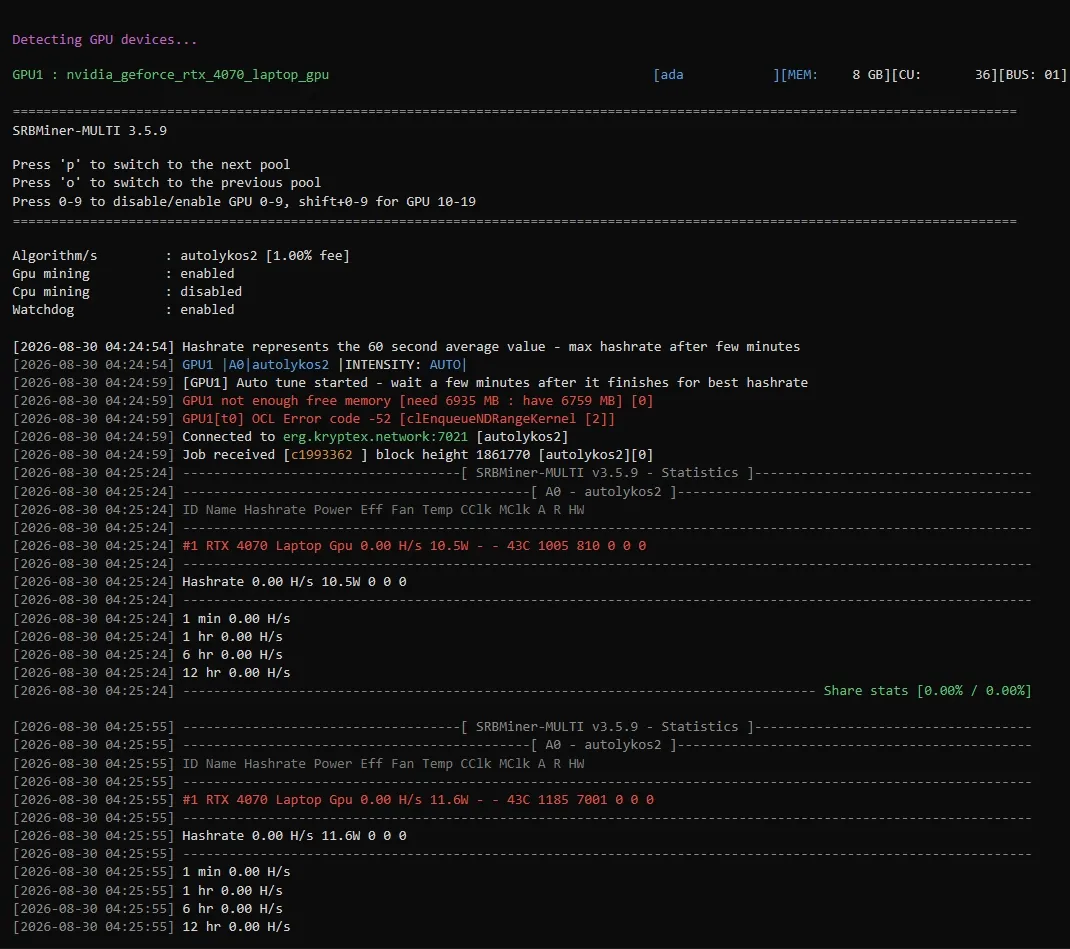
The situation where the miner started, the window didn't close, there's a connection to the pool, but the hashrate is zero. This is not the same as a crash, and the causes are different:
- The card doesn't support the algorithm or lacks enough video memory for the chosen coin.
- A driver conflict — update or reinstall cleanly.
- The overclock is so aggressive that the card doesn't produce valid solutions.
- The card is busy with another process — check GPU usage in Task Manager.
- System clock out of sync — turn on automatic synchronization.
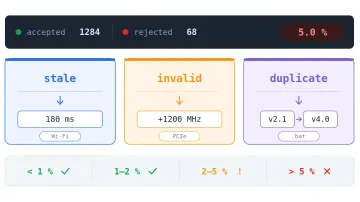
If there is a hashrate but lots of rejected shares, that's a separate topic:
🔗 Rejected shares: why shares get rejected and how to fix it.
11. Quick diagnostic checklist
Go in order, without skipping:
- ☐ Added
pauseto the .bat and read the error text - ☐ Checked that all miner files are in place (antivirus)
- ☐ Folder path in Latin characters only,
C:\miners\ - ☐ Page file increased to 16–20 GB, restarted
- ☐ Graphics driver up to date
- ☐ Rechecked the .bat: file name, algorithm, wallet, port, extension
- ☐ Pinged the pool — it responds
- ☐ Tried launching with a single card
- ☐ Closed other miners and overclocking programs
In 90% of cases the problem is found in the first four items.
12. Conclusion
Most miner crashes aren't a hardware failure but small configuration details: antivirus, non-Latin characters in the path, the page file. Start by adding pause so you can see the error — after that, diagnosis goes many times faster.
If the miner started but shares are being rejected, move on to the rejects breakdown via the link above.
⚠️ This material is for informational purposes. Modifying system settings and hardware is done at your own risk.