MSI Afterburner: step-by-step GPU overclocking for mining
MSI Afterburner setup to raise hashrate and cut power without killing the GPU: what each slider does, tuning order, stability testing and beginner mistakes.
How to configure MSI Afterburner to raise hashrate and cut power consumption without killing the graphics card. Step by step: what each slider does, in what order to tweak them, how to test stability, and the most common beginner mistakes.
Updated: 2026-09-02 · Reading time: ~10 minutes
#overclocking #msi-afterburner #gpu-mining
Contents
- Why overclock a card for mining at all
- The main difference between mining overclocking and gaming overclocking
- Installation and first launch
- What each slider does
- Tuning order: the correct sequence
- Step 1: limit the power (Power Limit)
- Step 2: tune the memory
- Step 3: lower the core
- Step 4: tune the fans
- How to test stability
- Saving the profile and autostart
- Common beginner mistakes
- What to do if the sliders don't move
- Conclusion
1. Why overclock a card for mining at all
Overclocking in mining solves two tasks, and the second is often more important than the first:
- Raise hashrate — the card computes faster, you earn more.
- Cut power consumption — the electricity bill drops while the hashrate stays almost the same.
For a home miner the second task is usually more profitable. The difference between "the card draws 250 W" and "the card draws 130 W at the same hashrate" is real money every month, especially with several cards.
2. The main difference between mining overclocking and gaming overclocking
This is the key point that confuses beginners coming from gaming.
In games you overclock the core (Core Clock) — FPS depends on it.
In mining it's the opposite: for most algorithms what matters is the memory (Memory Clock), while the core is actually underclocked so the card doesn't heat up and doesn't waste electricity.
💡 The mining overclock formula: memory up, core down, power limited. If you push the core up "to make it more powerful," you're just heating the card and paying for electricity without getting hashrate.
Exception: some algorithms (for example Autolykos for Ergo) depend more on the core than on the memory. Check for your coin.
3. Installation and first launch
- Download MSI Afterburner only from the official MSI website. The program is free and works with cards from any manufacturer, not only MSI.
- During installation you'll be offered to also install RivaTuner Statistics Server — agree, it's needed for correct operation.
- Launch the program. You'll see the main window with sliders and graphs.
⚠️ Close other overclocking programs (Sapphire TriXX, GeForce Experience with profiles, vendor utilities). Two programs controlling clocks at the same time cause conflicts and instability.
4. What each slider does
Let's go through them in order, because without understanding the meaning, overclocking turns into random poking.
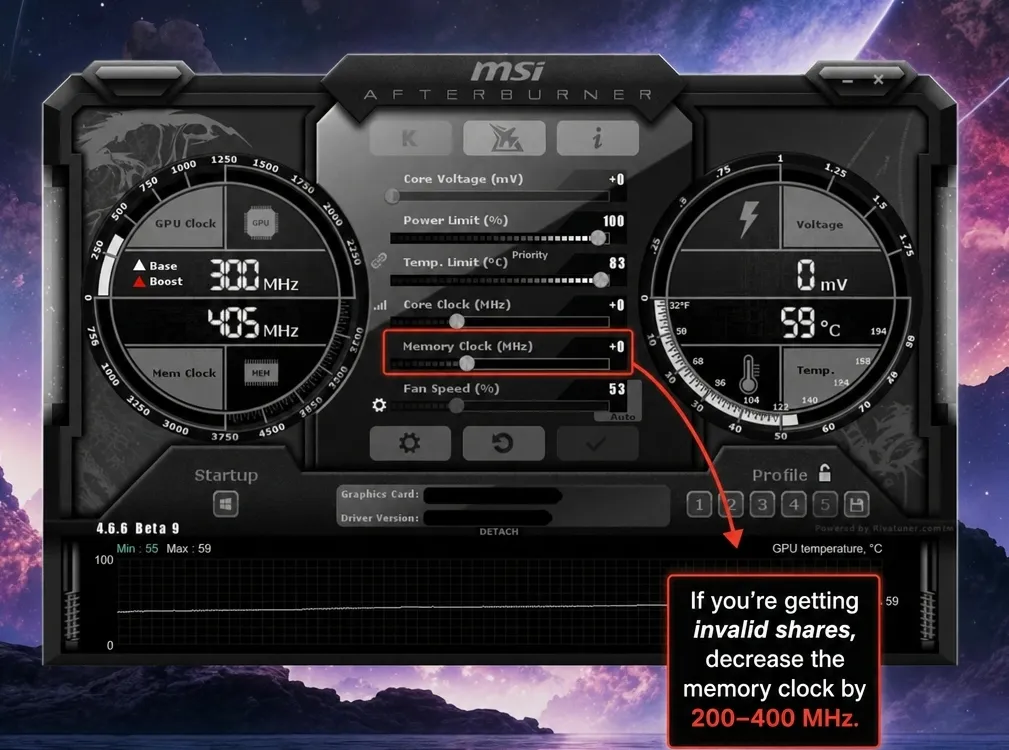
Power Limit (%) — the limit of power the card is allowed to draw. Lowering it forcibly cuts the card's appetite. The main tool of energy efficiency.
Temp Limit (°C) — the temperature threshold at which the card starts dropping clocks. Usually tied to Power Limit.
Core Clock (MHz) — the graphics core frequency. In mining it's more often lowered (a negative value).
Memory Clock (MHz) — the video memory frequency. The main parameter for most mining algorithms. It's raised.
Fan Speed (%) — fan speed. Manual tuning helps keep the memory cold.
Core Voltage (mV) — the core voltage. Beginners are not recommended to touch it; it's locked by default.
5. Tuning order: the correct sequence
Don't tweak everything at once — otherwise you won't understand what exactly caused the failure. The order is:
- First Power Limit (cut the appetite).
- Then Memory Clock (raise the hashrate).
- Then Core Clock (lower it so it doesn't heat up).
- Finally Fan Speed (cooling under load).
- A stability test after each change.
10. How to test stability
An overclock that holds for 5 minutes is useless. Test it like this:
- Short test: 15–20 minutes of mining, watch the hashrate and rejects.
- Full test: leave the rig running for several hours, better overnight. In the morning check the log: were there crashes, how many rejects accumulated.
- Success criteria: stable hashrate, rejects within 1–2%, temperatures normal, not a single restart.
If there were crashes overnight — the overclock is too aggressive, lower the memory.
11. Saving the profile and autostart
So you don't have to configure again after a reboot:
- Press the save icon (the floppy) in the main window.
- Choose a profile number (1–5) — the settings will be written there.
- In settings enable "Start with Windows" and "Apply settings at startup".
It's useful to keep two profiles: an aggressive one for stable conditions and a conservative one for hot days.
12. Common beginner mistakes
Pushing the core up. A habit from gaming. In mining it gives heat and consumption but no hashrate.
Changing everything at once. You changed three parameters, it got worse — and it's unclear which one is to blame. Only one at a time.
Chasing the maximum. The difference between 100% and 103% hashrate isn't worth the crashes and rejects. Final earnings are counted by accepted shares, not by the number on the screen.
Not testing for long. Five minutes is not a test. A night is a test.
Ignoring the memory temperature. They only look at the core while the memory overheats and starts producing errors.
Copying someone else's settings one-to-one. Even two cards of the same model can overclock differently — it depends on the specific sample and the memory type. Someone else's values are a starting point, not a ready answer.
13. What to do if the sliders don't move
A common problem — some sliders are locked.
- Run as administrator.
- In settings enable "Unlock voltage control" and "Unlock voltage monitoring", then restart the program.
- Some laptop cards and models with a factory lock don't allow changing certain parameters — this is a manufacturer limitation.
- Update Afterburner: old versions may not support new cards.
14. Conclusion
Overclocking for mining is not "make it more powerful" but finding a balance between hashrate, consumption and stability.
Remember the main points:
- Memory up, core down, power limited.
- Change one parameter at a time.
- Rejects matter more than hashrate — a pretty number with rejected shares means losing money.
- Leave a reliability margin: stable 24 hours is better than a record for 10 minutes.
⚠️ Overclocking is done at your own risk and may affect the warranty. This material is for informational purposes.
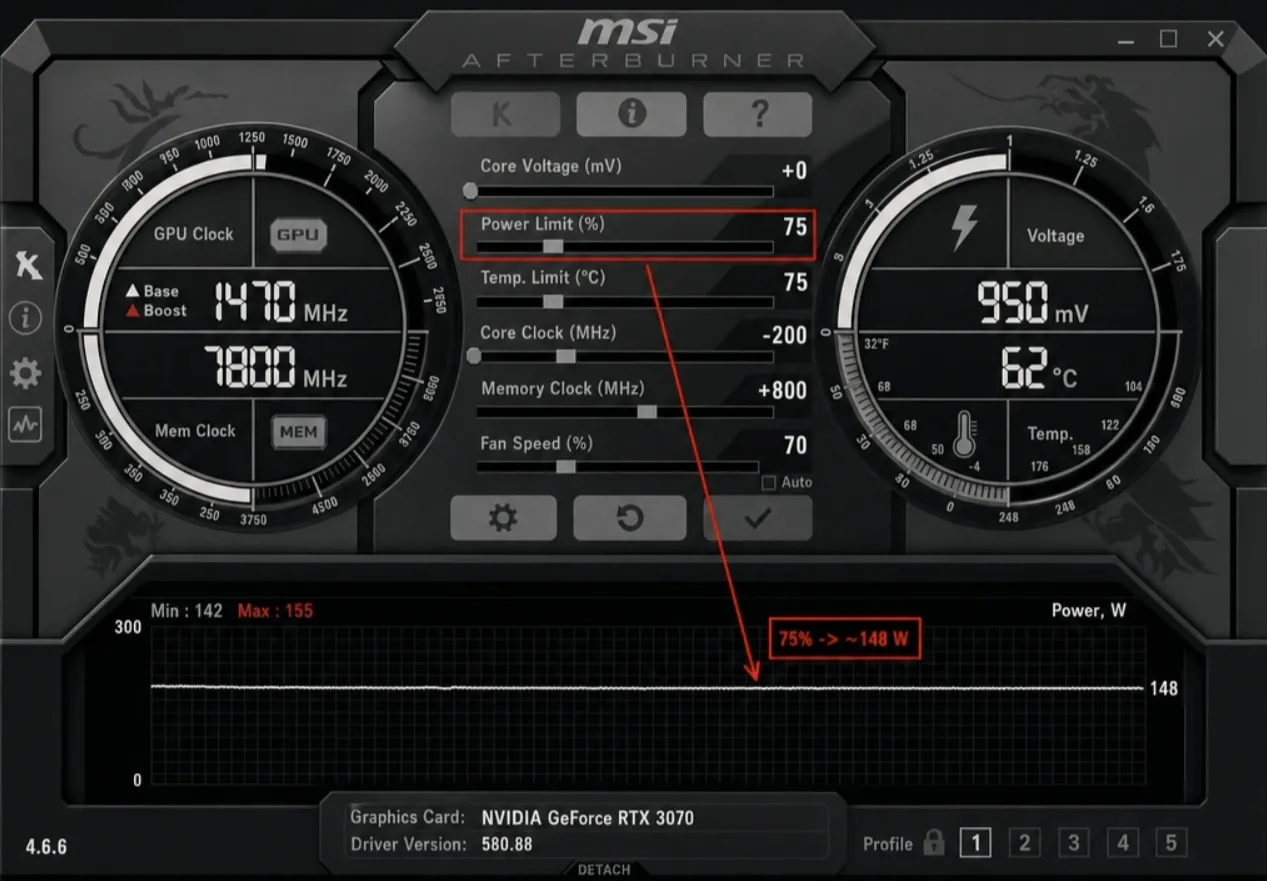
6. Step 1: limit the power (Power Limit)
Start with the safest step, which immediately shows an effect on electricity.
- Move the Power Limit slider down — start with 70–80%.
- Press the "Apply" checkmark.
- Launch the miner and look at the hashrate.
Most likely the hashrate will barely drop while the consumption decreases noticeably. Keep lowering in 5% steps until you see the hashrate starting to fall — then go one step back.
7. Step 2: tune the memory
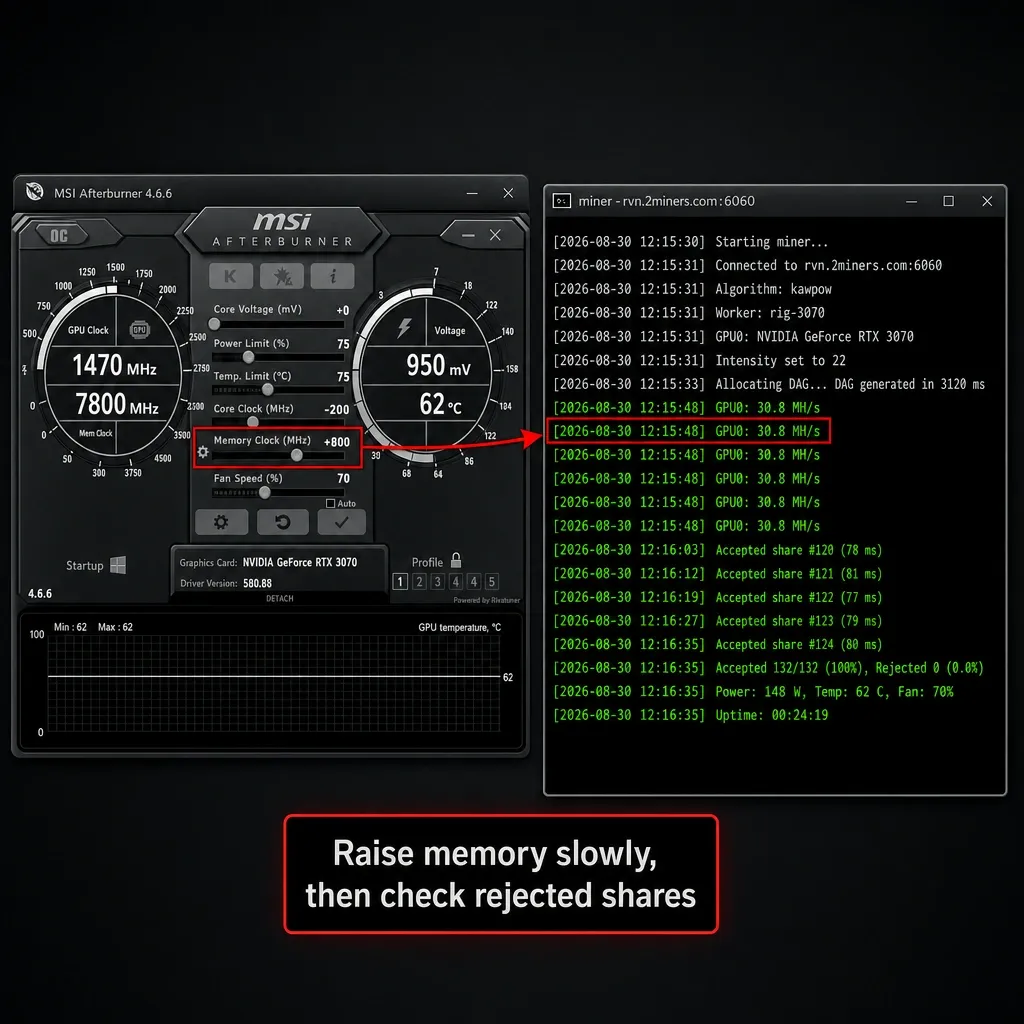
The main step for hashrate — and the riskiest one.
- Raise Memory Clock in small steps of 50–100 MHz.
- After each step — apply and check the miner for 10–15 minutes.
- Watch not only the hashrate but also the rejected shares in the miner log.
⚠️ Critically important. Over-tightened memory doesn't always cause a crash. Often the card keeps working and shows a high hashrate but computes with errors — and the pool rejects your solutions. You see a pretty number and lose money.
🔗 More on this problem — Rejected shares: why shares get rejected and how to fix it.
Signs that you've overdone it:
- rejected shares appeared or grew;
- the miner crashes;
- artifacts on screen (stripes, colored squares);
- the system freezes.
If you see any of them — lower the memory frequency by 200–400 MHz and test again.
Once you've found the limit, back off another 100–150 MHz. This reliability margin will save your nerves: a card running at the edge will crash at night, and you'll lose hours of mining for an extra percent.
8. Step 3: lower the core
Now reduce heat and consumption without losing hashrate.
- Move Core Clock into the minus — start with −200 MHz.
- Apply and check the hashrate.
- Keep lowering until the hashrate starts to fall — then go one step back.
Result: the card is cooler, quieter, eats less, and earns the same.
9. Step 4: tune the fans
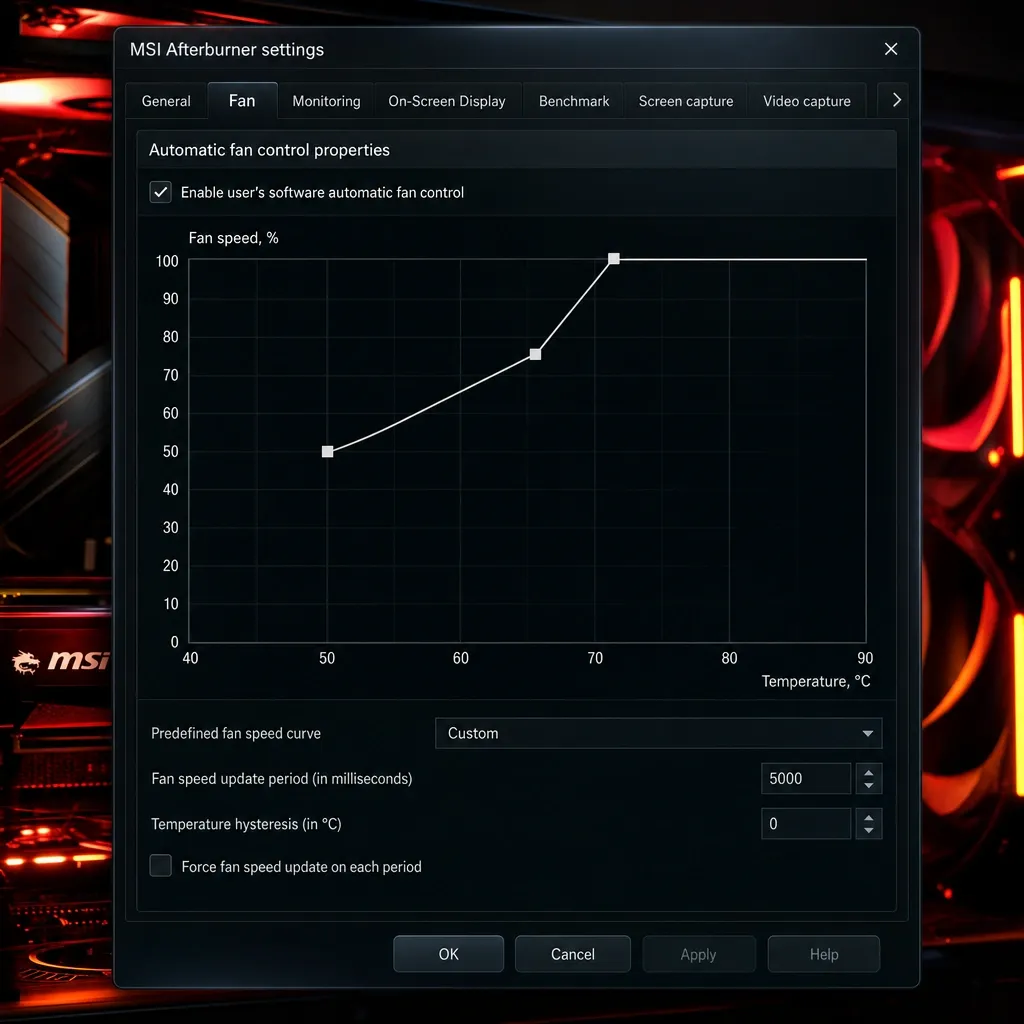
The automatic fan curve is designed for games, not for 24/7 load.
- Open settings (the gear) → Fan tab.
- Enable the user-defined software automatic mode.
- Build the curve: at 50°C — about 50% speed, at 65°C — 75%, at 70°C and above — 100%.
- Apply and save.
💡 The memory heats up more than the core and often it's the memory that limits the overclock. If you mine on GDDR6X cards — watch the memory temperature separately, it can be 20–30°C higher than the core.
10. How to test stability
An overclock that holds for 5 minutes is useless. Test it like this:
- Short test: 15–20 minutes of mining, watch the hashrate and rejects.
- Full test: leave the rig running for several hours, better overnight. In the morning check the log: were there crashes, how many rejects accumulated.
- Success criteria: stable hashrate, rejects within 1–2%, temperatures normal, not a single restart.
If there were crashes overnight — the overclock is too aggressive, lower the memory.
11. Saving the profile and autostart
So you don't have to configure again after a reboot:
- Press the save icon (the floppy) in the main window.
- Choose a profile number (1–5) — the settings will be written there.
- In settings enable "Start with Windows" and "Apply settings at startup".
It's useful to keep two profiles: an aggressive one for stable conditions and a conservative one for hot days.
12. Common beginner mistakes
Pushing the core up. A habit from gaming. In mining it gives heat and consumption but no hashrate.
Changing everything at once. You changed three parameters, it got worse — and it's unclear which one is to blame. Only one at a time.
Chasing the maximum. The difference between 100% and 103% hashrate isn't worth the crashes and rejects. Final earnings are counted by accepted shares, not by the number on the screen.
Not testing for long. Five minutes is not a test. A night is a test.
Ignoring the memory temperature. They only look at the core while the memory overheats and starts producing errors.
Copying someone else's settings one-to-one. Even two cards of the same model can overclock differently — it depends on the specific sample and the memory type. Someone else's values are a starting point, not a ready answer.
13. What to do if the sliders don't move
A common problem — some sliders are locked.
- Run as administrator.
- In settings enable "Unlock voltage control" and "Unlock voltage monitoring", then restart the program.
- Some laptop cards and models with a factory lock don't allow changing certain parameters — this is a manufacturer limitation.
- Update Afterburner: old versions may not support new cards.
14. Conclusion
Overclocking for mining is not "make it more powerful" but finding a balance between hashrate, consumption and stability.
Remember the main points:
- Memory up, core down, power limited.
- Change one parameter at a time.
- Rejects matter more than hashrate — a pretty number with rejected shares means losing money.
- Leave a reliability margin: stable 24 hours is better than a record for 10 minutes.
⚠️ Overclocking is done at your own risk and may affect the warranty. This material is for informational purposes.