BTC Tools: find your ASIC on the network, change pools and update firmware in batches
BTC Tools, Bitmain’s free ASIC utility: safe download, scanning a subnet for Antminers, batch pool changes and reboots, and what to do if it can’t see a miner.
You bought an ASIC, plugged it into the network, and then — nothing. The web interface exists somewhere, but at what address, nobody knows. BTC Tools solves exactly that problem and several that follow it: it finds every ASIC on your network, shows their hashrate and temperature in one table, changes pools in batches, reboots machines and updates firmware. The utility is free, weighs a couple of megabytes, and is needed by anyone with more than one machine. This guide covers where to get it without ending up with a tampered build, how to scan the network, what each column means, and what to do when it cannot see your miner.
📌 Status as of September 8, 2026: the official source of BTC Tools is the CloverPool pool (formerly BTC.com), which Bitmain links to from its knowledge base. Builds for Windows and Linux are there. Third-party sites distribute versions 1.3.1–1.3.4 and call themselves official — they are not. The utility supports most Antminers and some Avalons; the feature set depends on model and firmware.
What BTC Tools can and cannot do
The utility works over the local network: it polls a range of IP addresses, finds ASICs on them and puts the responses into a table.
It can:
- scan one or several subnets and find ASICs by IP;
- show hashrate, temperature, fan speed, pool, worker name and status;
- sort the table by any column — a machine with a dropped hashrate or overheating shows up in a second;
- keep refreshing data in monitoring mode;
- change pool, worker and password on all or selected machines in one batch;
- reboot in batches (Antminer only);
- update firmware in batches;
- on firmware with a mode selector — switch the power profile and frequency.
It cannot:
- work over the internet with a remote site — only the local network the computer is on;
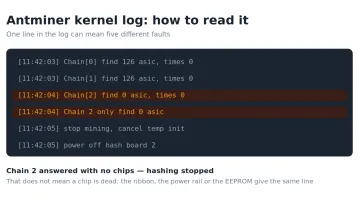
- fix hardware — if a board does not respond, the tool shows an error, and repair starts from the log; how to read it is in Antminer kernel log: errors explained;
- replace full farm monitoring with alerts — there are dedicated systems for that, covered at the end.
💡 BTC Tools is a remote control, not a server. It installs nothing on the miners and stores nothing: close the window and the machines keep running exactly as before.
Where to download it without getting a tampered build
This is the most important section of the article, and here is why.
BTC Tools changes the pool and wallet on all your machines in one batch. A tampered build can do the same thing for someone else — quietly rewrite the pool on every ASIC and steal the hashrate while you look at green numbers in the table. "Antminer viruses" have existed and worked exactly this way.
The problem is that the utility has no domain of its own. It is published by the CloverPool pool (BTC.com until 2024, a Bitmain-affiliated pool), and Bitmain's knowledge base links there. Meanwhile search results are full of sites named like btc-tool.org, btc-tools.org, tools-btc.com — each calling itself official and distributing its own version.
Official links:
- The guide with download buttons — help.cloverpool.com, the article "Using BTC Tools To Do Miners' Batch Management".
- Windows — via the
url.cloverpool.com/btc-tools-downloadlink from that guide. - Linux — the
btctoolspackage on Snapcraft.
Rules:
- Start from Bitmain's knowledge base or straight from the CloverPool guide — not from a "btc tools download" search.
- Do not download from clone sites, mirrors or links in chats, even if they offer a newer "update". A version difference is not worth the risk.
- Check the hash of the downloaded file — in PowerShell:
Get-FileHash -Algorithm SHA256 .\BTCTools.exe
If the download page publishes no hash, at least compare the archive size with what other users report, and do not run a file that differs noticeably.
🛡️ Windows Defender may flag the utility as unwanted — a false positive typical of all mining software. Only whitelist the file you downloaded from the source: Windows Defender exclusions.
Step 1. Prepare the network
BTC Tools only looks for ASICs on the local network the computer is connected to. So before launching:
- Make sure the computer and the ASICs are on the same network — behind one router or switch. Wi-Fi on the computer and a cable on the ASIC is fine if it is the same router.
- Find your subnet. In Command Prompt:
ipconfig
Look at "IPv4 Address" and "Subnet Mask". An address like 192.168.1.25 with mask 255.255.255.0 means the subnet is 192.168.1.1–254.
- If you have many ASICs spread across several subnets, write down all the ranges — BTC Tools can scan several.
💡 A quick check without the utility:
arp -ain Command Prompt lists every device the computer has recently talked to, with MAC addresses. Bitmain ASIC MACs start with the manufacturer's characteristic prefixes — you can find a machine by them even without a scanner.
Step 2. Scan the subnet
- Extract the archive to a folder with a Latin-only path, for example
C:\asic\btctools\. - Run
BTCTools.exe. There is no installer — it is a portable program. - In the top left, the utility auto-fills the IP range from your computer's settings. Check it: if the wrong one appears, right-click → Edit and enter yours.
- Click Scan Miner.
Scanning takes from a few seconds to a couple of minutes, depending on the range size. Progress shows in the bar next to the button. Found machines appear in the table as they respond.
The Only Success Miners box is ticked by default — only recognised ASICs make it into the table. Untick it to see every address that answered the scan: that helps tell whether there is a device on an IP at all, even if the utility did not recognise it as a miner.
⚠️ Important. While scanning, the utility polls every address in the range and loads the network. On large farms, do not scan ranges wider than needed and do not launch several scans in a row — it can slow down the miners' communication with the pool.
Step 3. Read the table
Each row is one ASIC. The columns to watch:
| Column | What it shows | What to look for |
|---|---|---|
| IP | Machine address on the network | Opens the web interface |
| Type / Model | Model | Check it was detected correctly |
| Hashrate (RT / AVG) | Current and average hashrate | A large gap between them means instability |
| Temp | Board and chip temperature | Sort by this column first |
| Fan | Fan speed | 0 or very low — a fan has died |
| Pool | Pool the machine is set to | A foreign pool = tampered settings |
| Worker | Worker name | A typo here = machine invisible in pool stats |
| Uptime | Time since last reboot | Frequent resets — a power problem |
The main trick: sort by columns. Click the Hashrate header — machines at zero rise to the top. Click Temp — overheated ones rise to the top. On a farm of twenty machines this replaces a walk-around with a flashlight.
The utility highlights three situations in red on its own: temperature above 90 °C or below 0 (a negative reading almost always means a dead sensor), a worker name that does not match the machine's IP, and hashrate below the threshold for that model. Thresholds are adjustable in Settings.
Right-click a row → Open Control Panel opens the ASIC's web interface in the browser, with auto-login on Antminers. From there, check the kernel log if the machine behaves strangely.
Step 4. Change pools in a batch
The most common task: the pool changed its address, you moved to another one, or you want to add a backup.
- Select the machines in the table (Ctrl + click for individual, Ctrl + A for all).
- In the lower part of the window, fill in the three pools — primary and two backups: address, sub-account or wallet name, password (can be empty). The trailing dot in the name can be omitted — the utility adds it.
- Choose the worker-name postfix type. IP is the most convenient — every machine gets a unique name like
account.192x168x1x31, and pool stats show at once which machine it is. - Click Config Selected Miners — or Config All Miners if you are configuring everything.
The utility sends the settings to each selected machine and shows the result per row. Machines that did not accept the settings are marked with an error — usually a wrong web interface password or a machine that was unreachable at the moment of writing.
⚠️ Important. Before a mass apply, test the settings on one machine. A typo in the pool address pushed to the whole farm stops the whole farm. How to choose a pool and what the three slots mean is in how to choose a mining pool.
To access settings, the utility uses the ASIC web interface login and password. On Antminers with stock firmware the default is root / root; if you changed the password, enter yours in the BTC Tools settings.
Step 5. Reboot and flash in batches
Reboot. Select machines → Reboot Selected (or Reboot All). Works only for Antminer; reboot Avalon and WhatsMiner through their own web interface.
Firmware update. Select machines of one model → Upgrade → point to the firmware file → Start. The utility uploads the file to each machine in turn.
⚠️ Important. Download firmware only from Bitmain's site for your exact model and revision. Flash in batches of a few machines, not the whole farm at once, and do not cut power to the ASICs while writing. S19 firmware on an S19j Pro is not "won't work" — it is "board won't boot".
Monitoring
The Monitor button switches the utility to continuous polling: the table refreshes itself at a set interval. Combined with sorting, this is the simplest farm monitoring: keep the window open, sorted by hashrate — a dropped machine floats to the top on its own.
What is missing: Telegram notifications, charts, history. If you need to learn about a problem without sitting at the monitor, see the monitoring systems at the end.
If BTC Tools cannot see the ASIC
The most common problem. Check in order:
- Is it one network. The computer and the ASIC must be behind one router. An ASIC on the router's "guest" Wi-Fi or behind a second router is invisible to the scanner.
- Is the range correct. Compare with
ipconfig. The utility sometimes picks up the range from a virtual adapter (VPN, VirtualBox) rather than the real network card. - Is Windows Firewall blocking it. On first launch Windows asks about network access — if you clicked "Cancel", the scanner is silent. Allow access on private networks.
- Has the ASIC booted at all. Watch the LEDs: green blinking — running, red — error. A freshly powered Antminer takes 1–3 minutes to boot.
- Did the ASIC get an address from another range. If the router runs DHCP and you scan a narrow range, widen it to the whole subnet
1–254. - Is there a static IP from another network on the ASIC. Happens with used machines: the previous owner set
10.0.0.xand yours is192.168.1.x. Check viaarp -aor connect the ASIC directly to the computer and scan everything. - Has the control board died. If the machine answers neither the scanner, nor ping, nor a direct cable — the problem is the controller or the network port, not the utility.
If the scanner sees the ASIC but with zero hashrate and an error, that is no longer network but hardware or settings. Continue from the log: Antminer kernel log.
Beyond BTC Tools
For a home setup and a small site, BTC Tools is enough. When it becomes too little:
- IP Reporter — a tiny Bitmain utility for one action: press the IP Report button on the ASIC and it announces its address. Handy when there is one machine and nothing to scan.
- APMinerTool — also from Bitmain, close to BTC Tools in features, leaning toward batch work on sites.
- Monitoring systems with alerts — Foreman, Hive OS ASIC Hub, minerstat and similar. They give notifications, history, internet access and automatic reactions, but are paid or take a fee and require installing an agent. Makes sense from a dozen machines up.
Choosing a pool, calculating profitability and deciding which machine to buy at all is a separate topic: how to choose an ASIC by electricity cost.
Frequently asked questions (FAQ)
Is BTC Tools free?
Yes, completely. No fees or subscriptions. If a site asks for payment or registration for a "full version", it is not the source.
Does it work with WhatsMiner and Avalon?
Scanning and viewing — yes, for most models. Reboot and some batch functions — Antminer only. For WhatsMiner, MicroBT has its own WhatsMinerTool.
Can I manage ASICs at a remote site?
Directly — no, the utility works only on the local network. The workaround is a VPN into the site's network, so the computer "ends up" on the same subnet. For permanent remote work, a monitoring system is the right tool.
The utility found the ASIC, but the web interface does not open by IP.
Check that you open http://, not https://, and that the browser is not applying a proxy. If that does not help, the ASIC may have answered the scanner but hung its web server; reboot it via BTC Tools.
Is it safe to give the utility the ASIC passwords?
It uses them only to push settings on the local network and does not send them outside — if it is the original build. That is exactly why the download source matters more than anything else in this article.
Is there a Linux or macOS version?
For Linux — yes, the official btctools package on Snapcraft, linked from the CloverPool guide. There is no official macOS build; anything offered for macOS on third-party sites is an unofficial build with the same risks as clones.
This material is for informational purposes only and is not financial advice. Download BTC Tools only from CloverPool or Snapcraft, and firmware only from Bitmain's site; the feature set is current as of September 8, 2026 and may differ for individual models and firmware.